


Did your husband upgrade your point and shoot camera to a Digital SLR this Mother’s Day? Or have you been using a DSLR for a while now, but only in auto mode? Either way, using a DSLR camera can be quite overwhelming, especially with all the new buttons on your camera. That said, you’re probably here today because you own a Canon DSLR and you’re hopeful that you’ll learn a thing or two about taking better photos of your child (if you own a Nikon DSLR, look for the Nikon version of this post coming soon).
Well, hang on tight! This summer, we’re going to take you step by step into the world of digital photography. Our goal is that you are taking photos of your children in manual mode by Labor Day. Sound good?
Alright then, let’s start with the very basics – buttons
on your camera !
READ MORE: Daily Mom’s Guide to Photography
Canon DSLR Front Buttons on Camera

This is the front of a Canon Rebel XSi. It’s a beginner’s DSLR and a few years old. You may own something similar to the Canon Rebel T3i instead. The buttons on your camera are going to be relatively the same (with a few additional features on upper end cameras). If you aren’t sure, pull out your camera’s manual.
- Lens Mount and Lens Mount Index (red dot). Every lens has a similar red dot that is meant to match up with the red dot on your camera body. It allows you to align, twist and click the lens into place. You’ll know your lens is secured once you hear the click.
- Flash Button. Press this button to activate your pop-up flash. When you’re in full auto mode, your camera will decide whether or not to use the flash. However, if you want to manually decide to use your on-board flash (ex. fill flash), this button can be useful.
- Lens Release. Press this button to release your lens from the secured position. When changing lenses, turn your camera off and avoid dusty areas.
- Depth of Field Preview Button. The depth of field determines how much of an image is in focus. For example, if you took a photo of someone with a mountain range in the background, and both the subject and the mountain range are in focus, you have deep or large depth of field. If the subject is in focus but the mountains are blurred, you have shallow or small depth of field. This button will close the aperture to give you an idea (through the viewfinder) of what will be in focus.
- Lens Contacts. These points will line up with the contacts of compatible lenses that allow for your camera’s auto focusing and other settings to work seamlessly.
- Mirror. The mirror allows you to see, through your viewfinder, almost exactly what you will photograph by reflecting the image up, and into the eyepiece. It is activated the moment you press the shutter release and will return to it’s original place once the photo is taken. DO NOT TOUCH THE MIRROR WITH YOUR FINGERS. Also, you should only use special cleaning solutions and equipment to clean it. If you spot any dust on your mirror, don’t mess with it. Any dust on the mirror will not appear on your image, so leave it alone.
- Grip. Usually rubberized, the grip makes it a little easier to hold your camera. It’s often best to hold a potential camera with the grip before making a camera purchase so you can get a feel for how the DSLR fits in your hands.
- Shutter Button. This is how you take a picture. But did you know that by pressing it halfway down, you will start the auto focus and exposure calculations? Press halfway down to establish your settings, then press all the way down to take a photo.
- Remote Control Sensor. This sensor is used as an indicator for the self timer function with a flash and beep during the delay.
- Pop-Up Flash. Most “prosumer” DSLR’s have a built-in flash that will activate in full auto as the camera thinks required. Try to avoid using your on-board flash.
READ MORE: 9 Photography Projects to Start in the New Year
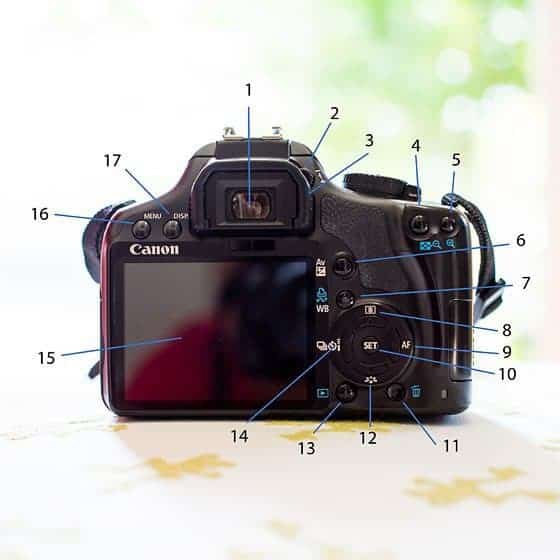
Canon DSLR Back Buttons on Camera

- Viewfinder. Unlike your old point and shoot camera, you actually have to look into the viewfinder to see what you are shooting. Some DSLR models include a live LCD screen (or a flip-out screen), but it’s just as easy to look through the viewfinder. When you look inside, you’ll be able to see your focal points, your histogram, ISO, aperture and shutter speed settings (all of which we’ll talk about in future articles).
- Dioptric Adjustment. Tucked in behind the rubber eyecup, the small dioptric adjustment dial is easily overlooked. Dioptric adjustment allows for fine-tuning of the viewfinder focus to meet an individual’s eyes. If adjusted correctly, a person who normally wears glasses or contacts, wouldn’t need to while using their camera.
- Rubber Eyecup. If you wear glasses, the rubber eyecup protects the lenses from scratching against the camera. Without glasses, it allows the viewfinder to form around your eye and eliminate any surrounding glare.
- Exposure Lock/Zoom Button. This button serves 2 purposes. A) Exposure Lock Button: aim the camera at your subject and press this button. It will record and keep (for a few seconds) that exact exposure while you recompose and shoot. It doesn’t work once you manually adjust your settings, but you’re probably shooting in auto mode right now, so it might still be useful for you. B) When using the image preview screen to look at your exposed images, this button will zoom in on a specific area.
- Focus Point Selector/Zoom Button. This button also has 2 purposes. A) Auto Focus Point Selector: you can choose from a number of points as to which you would like to use. If you auto select, the camera will automatically select the best focal point for the shot. B) When reviewing your images on the screen, this will zoom out of a specific area.
- Aperture/Exposure Compensation Button. This is another button that has 2 functions. A) Aperture Selector: to set the aperture, hold down this button and turn the dial to the preferred aperture. B) Exposure Compensation: used to alter the standard exposure set by the camera. You can make the image brighter or darker with this function, and it can be used in any creative shooting mode (but cannot be used when shooting in manual). This setting does not automatically cancel when you turn your camera off, so you must manually reset it to zero when you’re done taking photos.
- White Balance Selection, and Print/Share Button. This particular button has three functions. White balance is for making the white areas of your image look white. Normally, the auto white balance setting will obtain the correct white balance. However, if you want more control over this function, you can use this button to change the setting. You can also print and share with this button (see your manual for instructions).
- Metering Mode/Jump Selection Button. The metering mode is the method of measuring the brightness of the subject. If you aren’t sure which metering method to use, select evaluative metering. Using this same button, you can also browse through your photos 10 or 100 images at a time using the jump selection button.
- AF Mode Selection Button. Use this button to change the AF mode to suit different subjects. One-Shot AF is great for still subjects. Al Focus AF is great if you aren’t sure which AF mode to choose. Your camera will typically decide depending on your subject’s movement. Al Servo AF is perfect for moving subjects such as your children.
- Set. By setting various optional settings with the menus, you’ll use the menu button, cross keys and set button to select your preferences.
- Erase Button. This button will erase any selected images. You are normally asked first “are you sure” as a safeguard.
- Picture Style Selection Button. This button gives you the ability to obtain the desired image effects for your subject matter. You can choose between Standard, Portrait, Landscape, Neutral, Faithful and Monochrome (for black and white images). If you’re not sure, stick with standard.
- Playback Button. When the camera is turned on, this will display the last image taken on the small screen. Then you can scroll through all the others by using the cross keys.
- Drive Mode Selection Button. Push this button if you want to use your self-timer, a remote control or you want to use continuous shooting mode (which is great for capturing multiple shots of your children with the hopes that one of them is perfect).
- LCD Screen. Displays menus and images that have been exposed. It will not display the image on screen like most digital compact point and shoot cameras.
- Menu Button. The menu gives you access to all internal menu functions on your LCD screen. You scroll through them using the cross keys (or dial if you have one) and select buttons on your camera . See your camera’s manual for camera specific functions.
- Shooting Setting Display. Press this button to see all settings information for the selected image (exposure, white balance, date/time, image size, flash details, etc).
READ MORE: Portrait Photography Basics
Canon DSLR Top Buttons on Camera

Are you overwhelmed yet? If so, take a break. You can always come back to this post. And when you’re ready, continue reading.
- Shutter Button. We talked about this one in the first section.
- Main Dial. Use this dial to change shutter speed or aperture settings.
- ISO Speed Set Button. Set the ISO speed (image sensor’s sensitivity to light) to suit the ambient light level. If you don’t change it, the ISO speed is set automatically. 100 ISO is standard sensitivity and will produce clear images with very fine amounts of grain. 1600 or 3200 ISO on the sensor is highly sensitive, meaning you can shoot well in low light conditions without a flash, but you lose quality and images will appear more grainy. We’ll talk more about ISO in a future article.
- On/Off Switch. Switches the camera power on and off. If you leave your camera ON, the sleep mode will kick in after a few minutes and you can turn the power on quickly and instantly by pressing the shutter button.
- Mode Dial. The Mode Dial has the Basic Zone modes and Creative Zone modes. The Creative Zone gives you more control over the result: Program Mode, Shutter-Priority, Aperture-Priority, Manual Exposure and Automatic Depth-of-Field. In the Basic Zone (often seen on point and shoot cameras), all you have to do is press the shutter button and the camera does the rest. These settings include: Portrait, Landscape, Close-ups, Sports, Night Portraits and Flash Off modes.
- Hotshoe. The area where you can place an external, dedicated speedlite or other flash drive.
- Lens Auto Focus/Manual Focus Switch. It’s worth mentioning that almost all lenses have an auto/manual focus switch in this position.
Aperture Priority (AV)
Allows you to set the aperture of the lens and the camera will select the correct shutter speed. Shoot in this mode if you want more control over the depth of field (DOF) in your images. Note: An aperture of f/2.8 will have very little DOF, but a lot of bokeh (blurred background), while f/16 will have a much greater DOF and much more of your image in focus.
Shutter Priority (TV)
Allows you to set the shutter speed and the camera will select the correct aperture. Shoot in this mode in situations where you need control of the shutter speed, such as sports, wildlife or children. Most DSLR cameras have a range from 30 second exposure to about 8000th of a second (or faster).
Manual

Allows you to be in COMPLETE CONTROL. The cameras metering system can guide you, but you decide the shutter speed and aperture manually. By the end of the summer, we hope you will be shooting in manual mode.
Canon DSLR Bottom and Side Buttons on Camera

Finally, the bottom and side of your camera. Chances are that you’ve already figured out these components of your DSLR.
- Battery compartment. This is where the re-chargeable batteries live. Keep at least two charged (one in the camera and one spare) at all times so you are never caught without battery power.
- Tripod Socket. This piece makes it so that you can attach your camera to a tripod.
- Card Slot. Not to be obvious, but this is where your memory card goes.
Now that you’re completely overwhelmed with buttons on your camera, take some time to study today’s post. Or as “Teacher Susie” on Sid the Science Kid says, “go play with your new ideas.” When you’re ready, come back and we’ll talk about camera settings.
WANT TO READ MORE?
For more lessons on getting to know your camera, check out these 7 Basic Photography Rules.

Photo Credit: Ashley Sisk


Cannot WAIT for the Nikon version of this to come out! Definitely a good starter, though!