

































With a new year upon us, many people are making a move towards limiting or eliminating social media. If that’s you, or you just have an old account you no longer use, you may be wondering how to delete an account on Instagram.
According to research, Facebook is currently the dominant force when it comes to social media, it is currently the biggest social media network by a large margin. While Instagram is currently more popular with younger generations, it’s catching up in popularity with the general population as well. Still, it’s not for everyone, so you may have tried it out, decided it’s not for you, and now you’re wondering how to delete your account.
Turns out, it’s not as easy as it seems it would be. The steps are easy, but finding the actual way or place to delete your account isn’t so obvious. We’ve got you covered though, with this step-by-step guide.
First, before you delete your account make sure you save all of your photos. Once your account has been deleted everything will be permanently removed and Instagram will not reinstate deleted accounts. You won’t be able to sign up again with the same username, or switch over another existing account to that username. If you just want to take a break, you can temporarily disable your account instead. We’ll go ahead and give you instructions for both options below.
How to Delete an Account on Instagram

You will need to use a mobile web browser or your computer to delete an account on Instagram. You cannot delete an Instagram account from the app on your phone.
1First, go to the “Delete Your Account” page by clicking here. If you are not logged in to the account you want to delete, you will need to login.
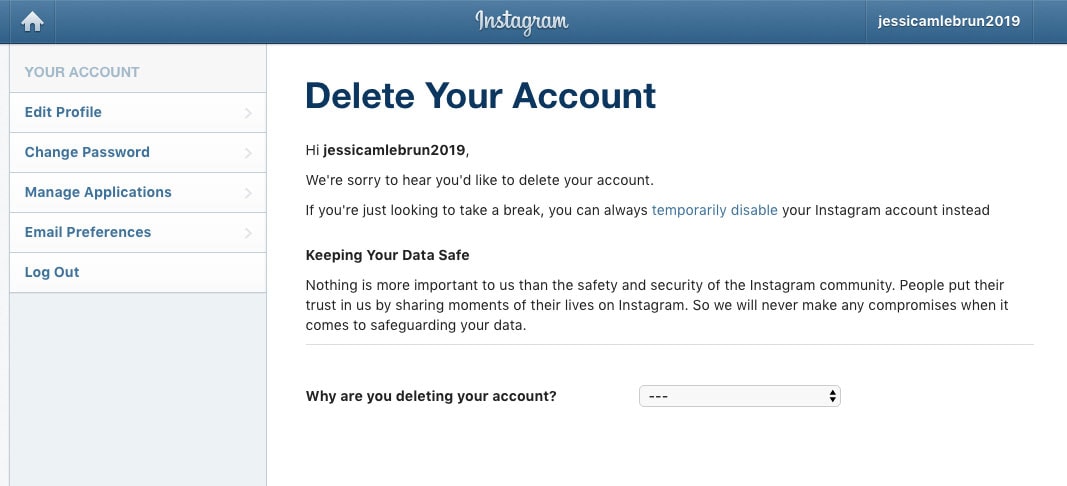
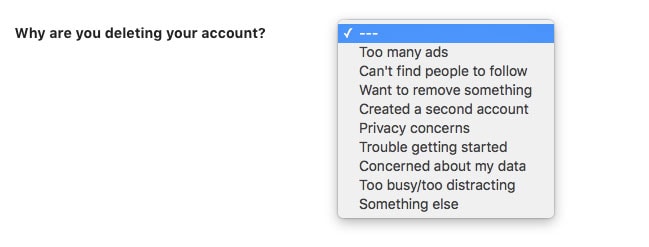
2Beside the question, “Why are you deleting your account?”, pick an answer from the drop-down menu.
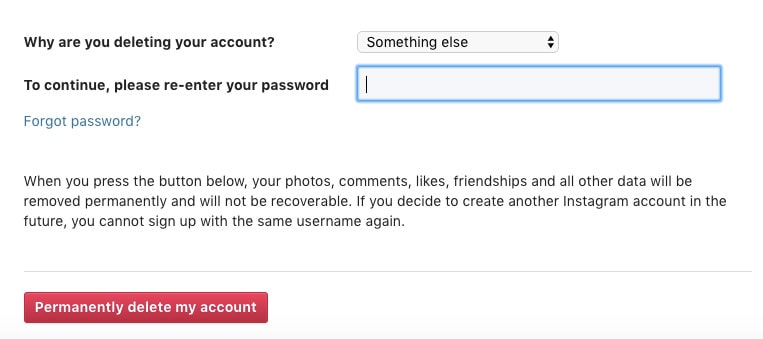
3A box will pop up for you to re-enter your password.
Click the “Permanently Delete My Account” button.
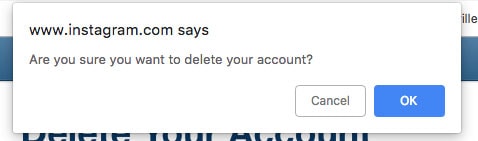
4At this point, Instagram will give you one last chance to change your mind with this pop-up. Click OK.
5You should see this message as confirmation that your account has been deleted.


6If you aren’t positive that it is time to delete your account, consider disabling it temporarily so you have the option to come back to it later without losing everything. Follow the steps below to disable your Instagram account.
How to Temporarily Disable an Account on Instagram

1Login to Instagram.com from a mobile web browser or computer.
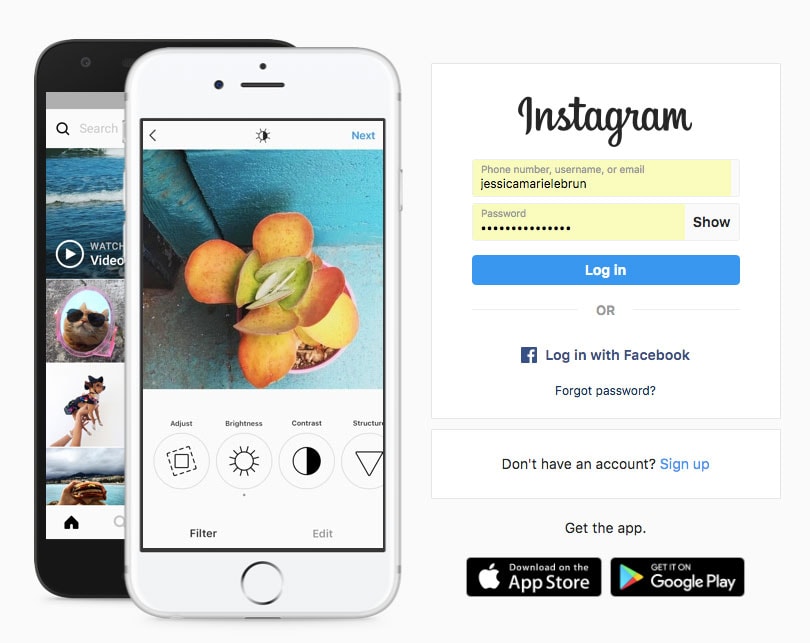
2Click on the person icon in the upper right-hand corner of the screen, then click Edit Profile.

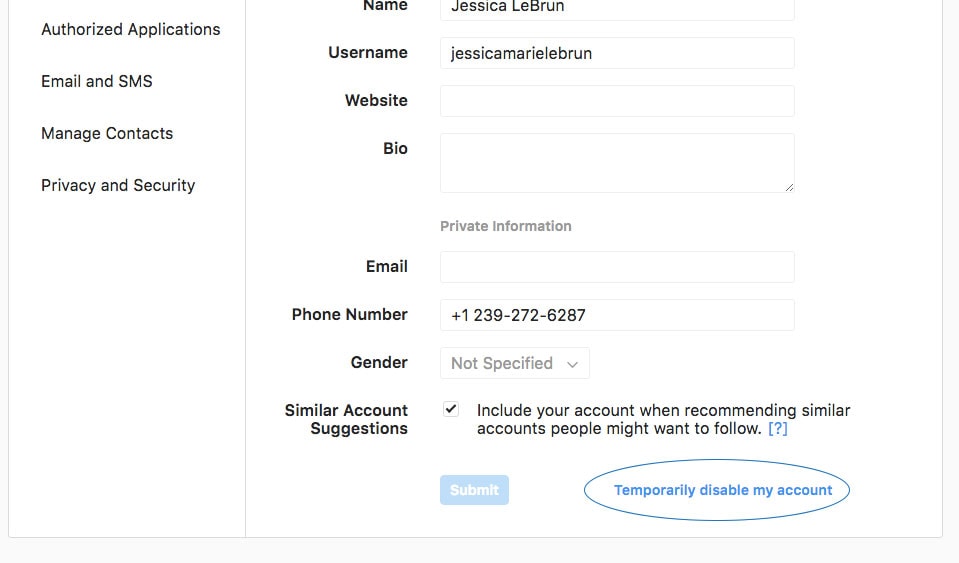
3Scroll down to the bottom of the page and click the blue “Temporarily Disable My Account Link”.
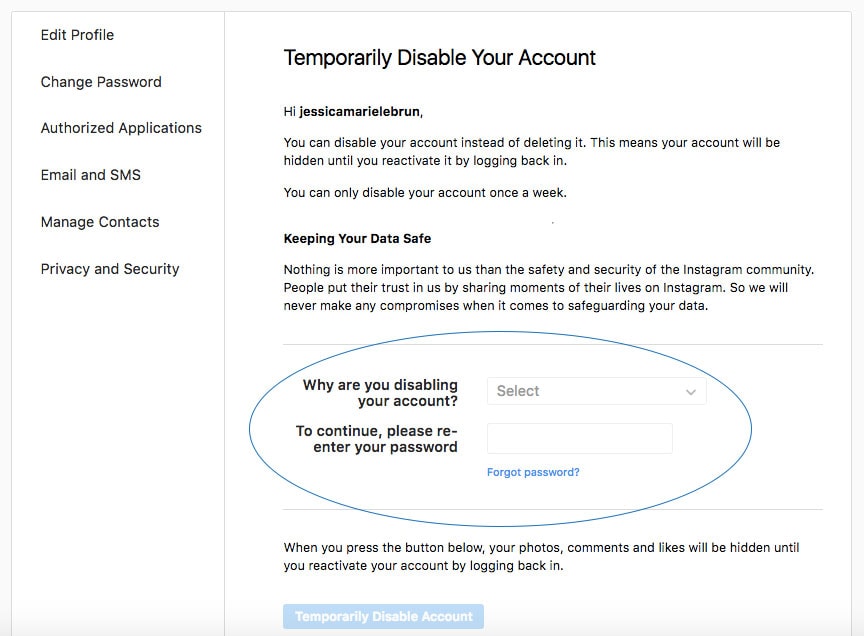
4On the next page, select an answer to the question “Why are you disabling your account?” and then re-enter your password.
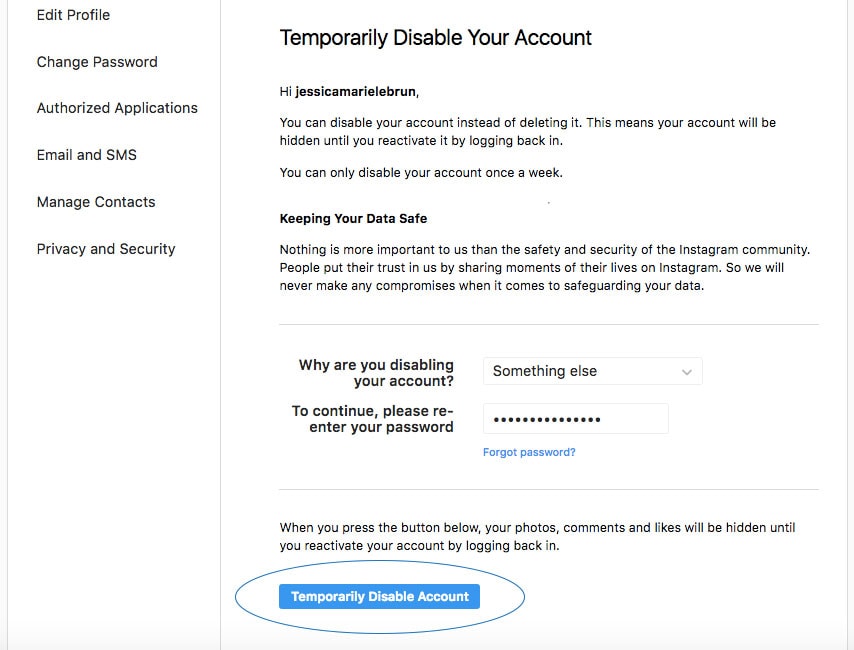
5Click the blue Temporarily Disable Account button.
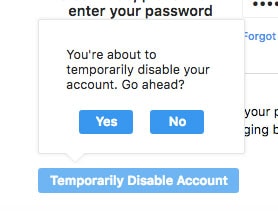
6You will see a small box pop up above the button asking you if you’re sure you want to temporarily disable your account. Click Yes.
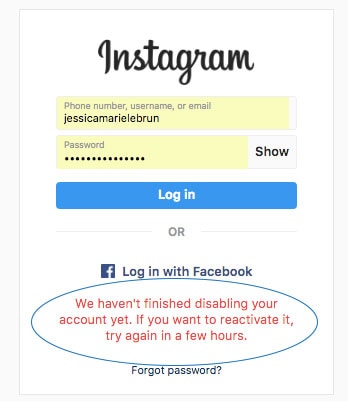
7You will be taken back to the login page. If you try to log back into your account right away, you will get a message that you need to try again in a few hours. Later, you can re-access your account and re-enable it if you wish.
While there are so many great aspects of social media, there are also a lot of reasons why you should delete your social media. Now you know how to delete an account on Instagram, or temporarily disable it if you just need a break.
WANT TO READ MORE?
If you decide to stick around, read our 20 tips for a positive relationship with social media, and then make sure you follow us @dailymomofficial!


Source: Facebook vs Snapchat vs Instagram: Which Is More Popular?